Finger Spinner: Glow Art Draw
Fusion Flow TechArt & Design
4.7296.00 Reviews
- Version
- 1.1.4
- Installs
- 1.00M
- Age Rating
- Everyone
Screenshots
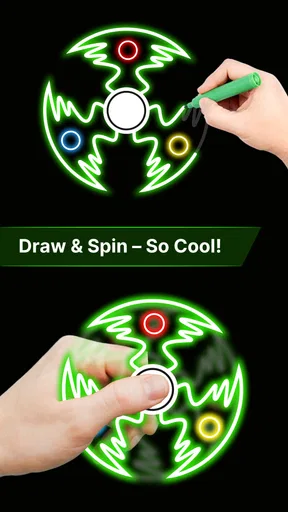
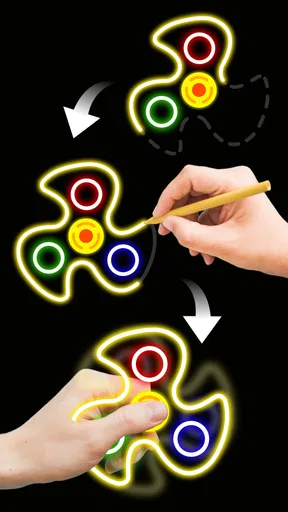
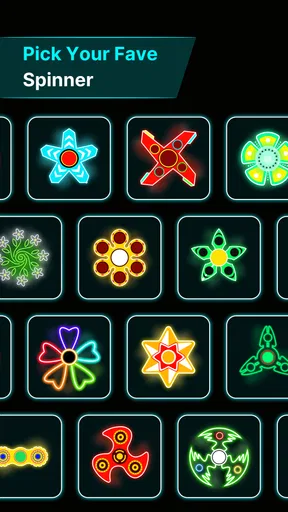
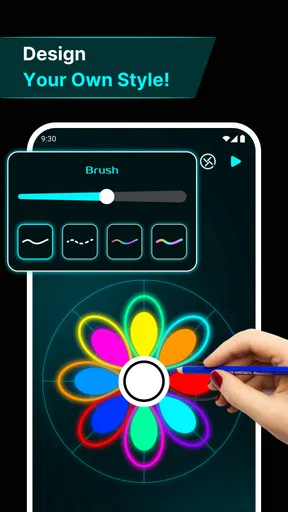
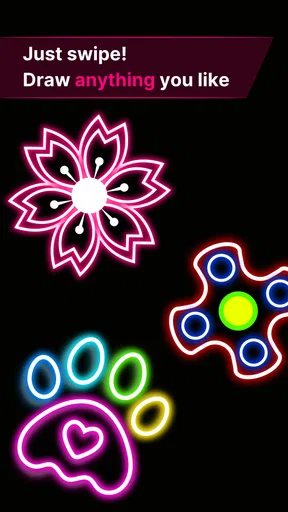
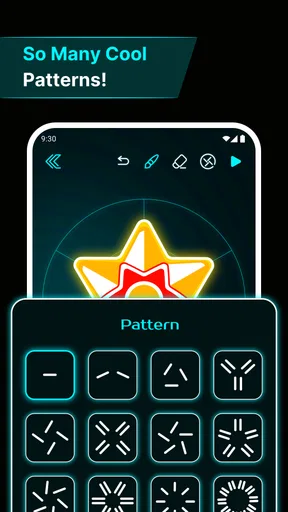
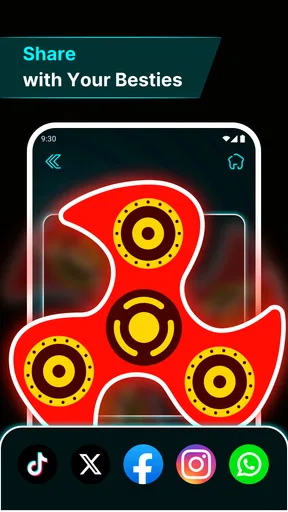
Our Review of Finger Spinner: Glow Art Draw
 Analysis by Appyee
I approached Finger Spinner: Glow Art Draw as a small creative break rather than a full drawing studio, and that distinction matters. The app turns finger movement into glowing circular artwork, with the spinning motion itself becoming part of the experience. It is easy to pick up, calming when I want something repetitive, and playful enough to keep me experimenting with patterns instead of simply making one picture and leaving.
This is an Android art and design app from Fusion Flow Tech. It is free, suitable for Everyone, and available for devices running Android 7.0 or later. The app has reached over a million installs and holds a 4.7 average from roughly fifty-eight thousand ratings, which fits my impression that its appeal is immediate: there is no long lesson to complete before the first satisfying result appears.
How the basic drawing routine feels in everyday use
The simplest way to use it is also the most useful starting point. I open the canvas, place a finger on the screen, and move in a steady circular path. The glow follows the movement, so even a rough loop quickly becomes a bright radial design. I found that slow circles are better for understanding how the mark develops, while faster movements create a looser, more energetic effect.
That first session is not really about producing a polished illustration. It is about learning the relationship between speed, pressure, direction, and repetition. A small change in the size of my circle can make the whole composition feel tighter or more spread out. Repeating the same movement gives the image structure, while deliberately changing direction produces a more irregular result.
A realistic use case is a short reset between tasks. If I have been reading, answering messages, or working at a desk, I can spend a few minutes making concentric loops without needing to decide what to draw. The activity occupies my hands and eyes, but it does not demand the planning that a conventional sketching app does. That makes it especially suitable for people who want a quick creative distraction rather than a serious illustration session.
I also like treating each attempt as disposable. Instead of trying to rescue a messy pattern, I start again and test one change: a wider motion, a different rhythm, or a pause before continuing. This habit makes the app feel more relaxing because there is no pressure to preserve every result. The value is often in the movement itself, not in creating an image that belongs in a portfolio.
The finger-controlled approach works best on a phone held comfortably in one hand or placed flat on a table. On a smaller screen, compact circles are easier to control. On a larger display, broad gestures feel more natural, but they also require more deliberate movement. I would not choose this as a substitute for a stylus-based drawing tool when precise lines, layers, or detailed editing are important.
The most useful mindset is to treat the canvas as a motion playground, not a traditional blank page. Once I stopped expecting ordinary sketching behavior, the app became much more enjoyable. The glow effect rewards rhythm and repetition, so the strongest results usually come from controlled gestures rather than attempts to draw recognizable objects.
Small habits that make the first results better
I get cleaner patterns by beginning near the center and gradually widening the movement. Starting with a large circle can work, but it often leaves the composition feeling empty in the middle. A central starting point gives the design a visual anchor and makes later loops easier to judge.
Another useful habit is to keep the first few movements consistent. If I change direction immediately, the result can become visually crowded before I understand what the app is doing. I prefer making several calm passes, lifting my finger, and then deciding whether the next pass should echo the existing shape or deliberately break it.
For a more balanced image, I try to keep the finger moving at a steady pace around the screen. Sudden stops can create interesting interruptions, but too many of them make the pattern look accidental. This is one of the app’s pleasant trade-offs: the same simple control can produce either a soothing repeated design or a chaotic burst, depending on how carefully I move.
Settings and controls worth checking before settling into a routine
The app is approachable because it does not bury the main interaction under a complicated creative workspace. Even so, I recommend spending a little time checking the available controls before judging the experience. The important question is not whether there are many options, but whether the current setup matches the kind of session I want: calm, experimental, or fast and playful.
I begin by looking at how the drawing responds to my finger and whether the visual result feels comfortable on the particular device. A glow that looks soft on one screen may feel intense on another. If I am using the app at night, I prefer a restrained approach and shorter sessions, because bright animated marks can become tiring when the surrounding room is dark.
It is also worth checking the behavior of any drawing or spinning controls available in the current version before building a habit around them. The current version is 1.1.4, and my advice is to learn the controls by making small test patterns rather than trying to understand everything from a single large drawing. That makes it easier to notice what each adjustment changes and prevents a promising design from being lost while experimenting.
One practical workflow is to create a simple baseline pattern first, then change only one control at a time. I might keep the same circular motion while testing a different visual response, or keep the visual setup unchanged while varying the gesture. This is more effective than changing several things together because I can tell which adjustment actually improved the result.
Experienced use here is less about secret shortcuts and more about repeatability. I use the same starting position, similar circle size, and a consistent pace when I want to compare results. Once that baseline feels familiar, I introduce one deliberate variation. That approach turns a casual fidget app into a small exercise in visual cause and effect.
Users who want a saved library, editable layers, text tools, brushes, or detailed color correction should set their expectations differently. This app is centered on immediate glowing movement, not on a complete design pipeline. For a poster, a carefully constructed illustration, or a project that must be revised later, a conventional drawing application is the better choice.
Turning simple gestures into faster, repeatable patterns
After a few sessions, I found that the quickest way to make engaging designs was to use a small vocabulary of movements. A tight loop creates a dense center. A gradually expanding spiral gives the eye somewhere to travel. Alternating wide and narrow circles creates a pulse-like rhythm. These are not separate game systems; they are repeatable finger techniques that make the app feel more intentional.
I often begin with three or four steady loops, then add a second pass that is slightly offset from the first. The offset matters because it prevents every line from stacking in exactly the same place. If the result becomes too busy, I return to a single direction and let the glow settle into a more unified shape.
For a quick session, I use a three-stage routine. First, I establish a compact center. Next, I widen the gesture while keeping the pace even. Finally, I add one short interruption or change of direction. This takes little time, but it produces more visual variety than random tapping and dragging. It is also easy to repeat when I only have a spare minute.
Another effective pattern is to alternate between drawing and observing. I make a few passes, lift my finger, and look at the balance of the image before continuing. Keeping the finger down continuously can be satisfying, but it also makes it harder to notice when one side has become heavier. Pausing gives me a chance to decide whether the next movement should fill space or add contrast.
The spinning idea is most enjoyable when I use it as a rhythm cue. Instead of trying to force a perfect circle, I let the repeated rotation guide my hand. This works well for fidgeting because the motion stays simple, while the screen provides enough feedback to keep it from feeling empty. It is a good fit for someone who likes repetitive tactile activities but wants a visual result as well.
There is a trade-off between speed and control. Fast gestures create immediate energy, but they can make the design difficult to predict. Slow gestures offer more control over spacing, though they require more attention and may feel less like a fidget. I switch between the two depending on whether I am trying to relax or deliberately build a pattern.
Where the creative control starts to run out
The app’s simplicity is its strength, but it is also its main limitation. The glowing circular style gives every result a recognizable character. That consistency is pleasant for casual use, yet it can become repetitive if I want radically different visual languages. Someone looking for watercolor, pixel art, vector shapes, or realistic brush texture will quickly find the experience narrow.
I also would not rely on it for precise hand training or technical drawing. Finger movement is expressive, but it is not a replacement for a stylus, rulers, layers, selections, or detailed undo workflows. If the purpose is to create an exact icon or edit a finished image, this is the wrong tool. Its controls are better suited to improvisation than accuracy.
Another limitation is that the results depend heavily on the screen and the user’s movement. A pattern that feels smooth on a responsive device may feel less satisfying on older hardware or a crowded display. The minimum Android requirement is 7.0, which makes the app accessible to many devices, but compatibility alone does not guarantee that every screen will provide the same comfort or visual impact.
The app’s Everyone rating makes it easy to recommend as a family-friendly creative activity, but younger users may still need sensible screen-time boundaries because the repetitive glow can encourage “just one more” attempt. Adults who use it as a short break should set their own stopping point too. The experience is intentionally open-ended, so it does not naturally tell me when a session is finished.
I would also skip it if I need a strong social or competitive layer. The appeal is personal experimentation, not progression through complex challenges. Likewise, people who want a structured drawing course may prefer an educational art app with lessons and feedback. Finger Spinner: Glow Art Draw is more satisfying when the user is happy to discover patterns through repetition.
My verdict after building a consistent way to use it
After using it with a repeatable routine, I see the app as a focused relaxation tool with a creative edge. It does not try to be a full art suite, and I think that is the right decision. The finger spinner concept gives it a clear identity: I can move, watch the glow respond, and enjoy a visual result without preparing a project or learning a complicated interface.
It is especially good for short breaks, casual experimentation, and anyone who enjoys fidget-style interaction. I would recommend it to a friend who wants something more engaging than a static coloring screen but less demanding than a serious drawing program. It also works for users who like testing how small changes in rhythm and spacing affect an abstract design.
My recommendation comes with a clear boundary. If you need professional artwork, editable construction, detailed brush control, or a dependable way to revisit a complex composition, choose a dedicated drawing app instead. This experience is not weakened by lacking those tools; it simply serves a different purpose. Its best moments happen when I stop asking it to behave like software it was never meant to replace.
Fusion Flow Tech has kept the central idea easy to understand, and the free price removes the biggest barrier to trying it. The 4.7 average and large install base suggest that the straightforward concept connects with many people, though popularity does not change the app’s narrow creative scope. I would judge it by whether you enjoy the motion and glow, not by expecting a complete art workstation.
My final advice is to begin with slow centered loops, learn one adjustment at a time, and use short repeatable patterns instead of random movement. That approach reveals more of what the app can do while keeping the experience calm. For me, Finger Spinner: Glow Art Draw succeeds as a compact, friendly way to turn idle finger movement into glowing abstract art, provided I accept its limits and use it for relaxation rather than precision.
Verdict
Strengths of Finger Spinner: Glow Art Draw
- Simple controls make it easy for anyone to start spinning and drawing.
- Glow effects create attractive patterns on a dark background.
- Short sessions are suitable for quick, casual entertainment.
- Runs without requiring advanced gaming skills or complicated tutorials.
- Creative designs can be replayed and enjoyed as relaxing visual effects.
Limitations of Finger Spinner: Glow Art Draw
- Repetitive gameplay may lose its appeal after a few sessions.
- Some features or designs may require watching ads or making purchases.
- Visual effects can feel basic compared with more advanced drawing apps.
- May consume extra battery during extended use with bright glow effects.
- Limited depth makes it less suitable for users seeking a challenging game.
Other Releases by Fusion Flow Tech
View All
Themebox - App icons, Widgets
Personalization4.7

Silly Fun Smile Live Wallpaper
Personalization4.8

Animation Draw: Flip Maker
Art & Design4.5
Similar Picks in This Category
View All
Canva: AI Photo & Video Editor
Canva4.8

PENUP – Drawing-sharing SNS
Samsung Electronics Co., Ltd.4.5

Crafto
Kutumb App4.6

Sketchbook
Sketchbook4.1

ibis Paint X
ibis inc.4.5

Adobe Express: AI Photo, Video
Adobe4.6
Frequently Asked Questions
What is Finger Spinner: Glow Art Draw and how does it work?
Finger Spinner: Glow Art Draw combines a virtual fidget spinner with a colorful drawing experience. After launching the app, you can spin the on-screen spinner with your finger and create glowing patterns, lines, and visual effects. It is designed mainly for casual entertainment, relaxation, and creative experimentation rather than as a competitive game with a detailed story or complex objectives.
Is Finger Spinner: Glow Art Draw free to download and use?
The app can generally be downloaded for free, but availability of certain features may depend on the version installed and the developer’s monetization model. Free users may encounter advertisements or optional in-app purchases, such as extra visual effects, customization choices, or an ad-free experience. Before downloading, check the current store listing for pricing, subscriptions, and any additional purchase requirements.
Does Finger Spinner: Glow Art Draw require an internet connection?
Basic spinning and drawing functions may work without a constant internet connection, which makes the app suitable for short offline sessions. However, an internet connection could be required for displaying advertisements, loading promotional content, restoring purchases, or accessing certain online features. If you want to use it while traveling or with limited data, test the main tools offline after installation.
Is Finger Spinner: Glow Art Draw suitable for children?
The simple controls and bright glow effects can make Finger Spinner: Glow Art Draw appealing to children, but parents should review the app’s age rating and store information before allowing use. Advertisements, optional purchases, and device-permission requests are important considerations. Younger children may also benefit from supervision, especially if the app is installed on a device connected to a payment account.
What permissions and device requirements should I consider before installing it?
Finger Spinner: Glow Art Draw is primarily a touch-based entertainment app, so it should not require advanced hardware for its basic functions. Nevertheless, permission requests can vary between versions and devices. Review them carefully during installation and deny anything that seems unnecessary. You should also ensure that your phone or tablet has enough free storage and runs a compatible Android or iOS version.
